
Sabalcore provides both Graphical and command-line interfaces. For Windows users new to Sabalcore and Linux, the bulk of your work can be done graphically (similar to working with Windows 7). From the Remote Desktop, you will find a file manager, zip tool, editors, a browser and many other familiar tools similar to those found in Windows.
However, there maybe a time that requires you to use some basic Linux command-line commands. If you are new to Linux it is recommended that you review the basic commands.
Linux vs. Windows – Some important thins to keep…
Xterm or Terminal Window
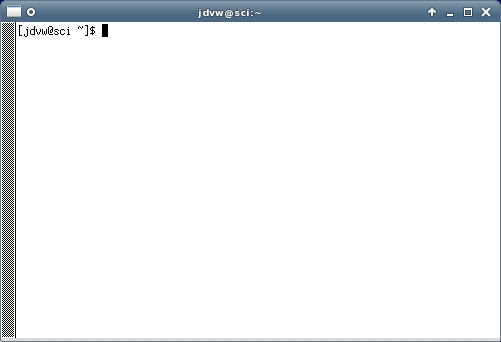
The MS Windows equivalent to the Command window or MSDOS window is the “xterm”, also known as a “terminal window”. This window can be found in the graphical interface. As you can see from the image below, all it says is [jdvw@sci ~]$ (in your case it will have your user id instead of ‘jdvw’). This is called the prompt. In this example, “jdvw” is my user name, “~” represents my home directory (and the directory I am in currently), and the “$” tells you the command line is ready to take commands. The user types commands at the prompt. The computer then runs the appropriate program.
There are more commands than you could ever hope or need to know. Below is a short list of some of the most common commands you should be familiar with in order to use the Sabalcore service.
Recommended Commands
$ pwd
At the command line, you don’t have a graphical representation of where you are at in the file system. This command will print your working directory, or in other words, where you are in the file system. Note that the word print, in this case, has nothing to do with your printer; it means that the response will be printed to the terminal window. Try typing “pwd” and press enter in the Terminal now.
$ ls
The ls command lists the contents of the working directory. It is the non-graphical equivalent of double-clicking a folder to see what is inside. Try typing “ls” and press enter in the Terminal now.
$ exit
This command closes the command line and exits the window.
There are many other commands in Linux. There are many resources on the internet to help you learn more.
CTRL-c
If you get stuck, use ctrl + c to exit a command or process
DOS to the equivalent Linux Command Summary
|
Command’s Purpose |
MS-DOS |
Linux |
Basic Linux Example |
|---|---|---|---|
|
Shows your location in the file system |
chdir |
pwd |
pwd |
|
Copies files |
copy |
cp |
cp thisfile.txt thisfilecopy.txt |
|
Moves files |
move |
mv |
mv thisfile.txt ~/data/thisdirectory |
|
Lists files |
dir |
ls |
ls |
|
Clears screen |
cls |
clear |
clear |
|
Closes prompt window |
exit |
exit |
exit |
|
Deletes files |
del |
rm |
rm thisfile.txt |
|
Displays help page for a command |
command /? |
man command |
|
|
Creates a directory |
mkdir |
mkdir |
mkdir directory |
|
Renames a file |
ren |
mv |
|
|
Changes directories with a specified path (absolute path) |
cd pathname |
cd pathname |
cd /directory/directory |
|
Changes directories with a relative path |
cd .. |
cd .. |
cd .. |