
The Sabalcore Remote Desktop allows the user to run graphical applications and contains tools and features similar to a workstation. An account can have up to two independent desktop sessions.
First, use the ssClient to open A Remote Desktop Session
Select “Plugins->Remote Desktop” from the menu.
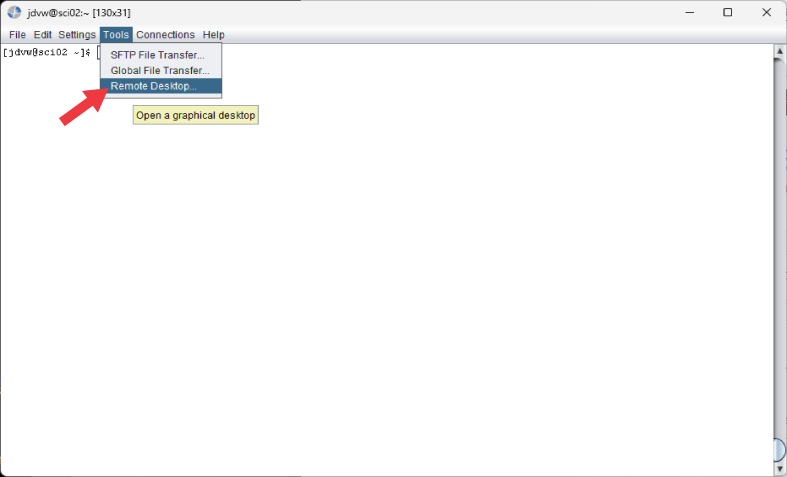
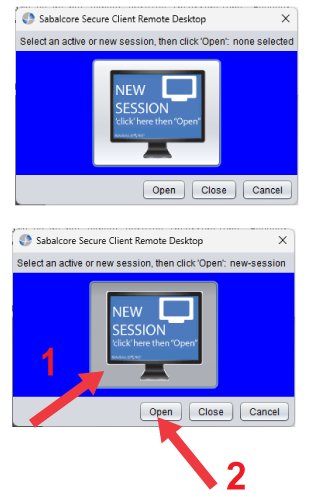
If this is your first time connecting to the interface, you will need to start a new session. 1) Select the “New Session” icon (it should turn gray) and 2) “Open”.
Select the desired screen size. You can resize the screen later.

After a few moments you should see a screen similar to the one below.
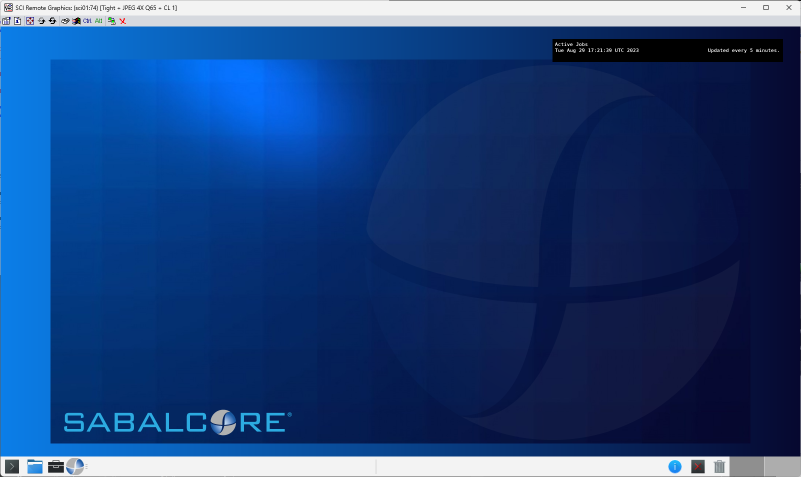
The desktop contains the following main features
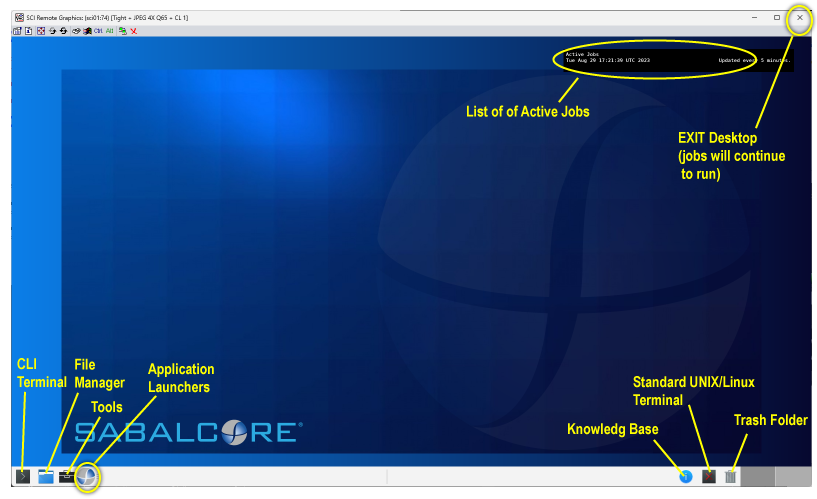
CLI/Terminal – command-line interface with point and click features like copy and paste
File Manager – Windows style file manager. Use View –> Reload to refresh and active directory
Tools – includes web browsers, spreadsheet, job status, CPU listing, and quick access to basic accounting information
Sabalcore Application Launchers – Custom made launchers for popular applications that require a GUI or user interaction. For example FDS, STAR-CCM+, ANSYS, etc. Refer to Section 3 of the Knowledge Base for application specific details.
Knowledge Base – alternative access to the Knowledge Base
UNIX/Linux xterm – the standard xterm client
Trash Folder – Shows the files in your trash folder. You can delete permanently from here
Workspace – Two independent workspaces are available for each session. This allows for a total of 4 users to easily share one account.

List of Active jobs – a listing of your active jobs, either waiting in the (Q)ueue, (R)unning, or recently (C)ompleted. The text is not selectable. For selectable text enter “qstat” at the command line.
EXIT the Desktop Session – Click the “X” to close the desktop. Jobs will continue to run. To reopen the same desktop, click Tools -> Remote Desktop. Click the thumbnail of the active desktop and click open. A user can have up to two independent desktop sessions.