
There are two methods for running a job – Interactive and batch
Interactive mode – where a job is submitted to the resource manager for processing with the ability to interact directly with the process or user interface such as the graphical interface. Interactive jobs must be manually exited or the job will continue to incur charges.
Batch mode – where a job is submitted to the queue for processing without any interaction from the user. Batch mode jobs end automatically. The attributes of the job may be specified on the command line or in the job script when the job is submitted.
pbs script – defines the batch job. See Setting Up Your Job for details.
Starting an Interactive mode Job
Interactive jobs allow you to run your applications manually without using a pbs script. You can start an interactive job using the command-line or the launcher. Some attributes of the job (such as the modules required) may be specified on the command line after the job starts. Interactive jobs must be manually exited or the job will continue to incur charges.
Starting an Interactive Job using the launcher
1) Start or open a remote desktop session.
2) Click the Sabalcore logo from the menu block located at the bottom of the remote desktop. Pre configured launchers for specific applications are listed. Choose the application if it is listed, otherwise, select “Interactive Job”.

3) Select Interactive Job. The launcher will appear.
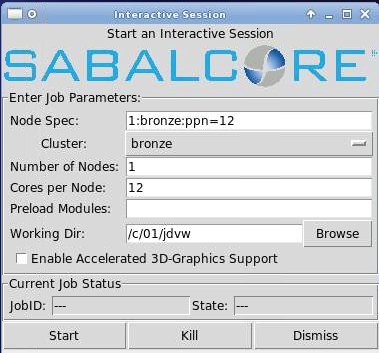
4) Select Interactive Job configuration.
Node Spec: defines the cluster, number of nodes, and processors per node. Choose your node spec,
or enter each specification manually:
Cluster: select one of the clusters
Number of Nodes: number of nodes you want to use for the interactive session
Cores per Node: number of cores per node
Preload Modules: you can enter the module here or load them from the command line after the session starts
Working Dir: working directory of the interactive session. You can change this anytime from the command line after the session starts
5) After you enter the Node Specifications, click the start button. After the interactive job starts, you should see a terminal window appear. Notice the command prompt has changed and now displays the name of the head node of the interactive job.

You can now enter commands to the node. Be sure to exit from the session using the command “exit” or click the “kill” button on the launcher window when you are finished. Otherwise, you will continue to be charged for the time the interactive session is running.
Starting an Interactive Job using command-line
You will need to specify the ‘nodes’ directive on the qsub command line. Additionally, you need to add the ‘-I’ for “interactive” option. Below is an example interactive session on 48 copper cores. The interactive session should be started from a terminal window in the remote graphics screen.
[user@sci02]$ qsub -I -l nodes=2:copper:ppn=24
qsub: waiting for job 462414.jman to start
qsub: job 462414.jman ready

[user@n783068]$ module load paraview
[rg3d]: Using software level rendering.
[user@n783068]$ paraview
[user@n783068]$
Starting Stopping and Monitoring a Job
The following commands are entered at the command line the a terminal or command window.
Submit a job for batch mode processing
qsub [pbs_script ]
Submit a job to the queue for execution. Example:
qsub myjob.pbs
Monitor Jobs
qstat
Display current information about submitted jobs.
qstat -n
Display current information about submitted jobs including compute nodes.
qstat -f [job_id]
Display all details about submitted jobs.
Stop a Job
qdel [job_id, ...]
Delete a job.
Hold a Job
qhold [job_id, ...]
Place a hold on a job.
qrls [job_id, ...]
Remove a hold from a job.
Job State
The upnodes command shows the state of the job. The column denoted with the “S” or job_state shows the state of the job.
“R” = job is running
“C” = job has completed
“H” = job is on hold
“Q” = job is in the queue waiting for resources
Error and Output files
For a normal batch job, the standard output and standard error of the job is written in real-time to ~/.pbs_spool. When the job completes, the files will be returned to the directory from which you issue the submit command and will have a .oXXXXX and .eXXXXX extension. This differs from an interactive session where commands are executed when entered via the terminal and output is returned directly to the terminal.
Other commands of interest
qalter – Alter a job’s attributes.
qmsg – Append a message to the output of an executing job.
qrerun – Terminate an executing job and return it to a queue.
qsig – Send a signal to an executing job.
Also see qlogin to log into a running batch job.
For more information on these commands, use the “man” command. For example: man qsub.