
Receiving Email Notifications
Add this line after the #PBS directive to receive emails when a job starts and ends.
“#PBS -m e -M [your email address]” to send an email when the job ends. or ”#PBS -m abe -M [your email address]” to send an email when the job begins, ends, or is aborted.
For example:
#PBS -l nodes=1:copper:ppn=24
#PBS -m abe -M myemail@example.com
# Change to your working directory
 cd ~/work
# load any required modules to setup your environment
module load gcc
# Start some program with some required options
 ./program -s 0 -e 100 --threads 12
For the “-m abe”, the letters a, b, and e are defined as:
a mail is sent when the job is aborted by the batch system.
b mail is sent when the job begins execution.
e mail is sent when the job terminates.
Assign a unique job name
You can designate a job name for each job. qstat will show the job name instead of the name of the .pbs file (default).
qsub -N [my_job_name] myfile.pbs
where [my_job_name] is any name without spaces or certain special characters (;, :, ., “, , #’). For example:
qsub -N my-test-1 myfile.pbs
or add this line to myfile.pbs file under the node specs:
#PBS -N [my_job_name]
for example:
#PBS -N my-test-1
Assign unique attributes to a job for accounting and tracking.
See this article for details.
Graphical Text Editors
There is a basic text editor available on the remote desktop called “Mousepad”. Use it to modify text-based files if you are not familiar with screen-based editors. Simply navigate to the file using the File Manger

and right-click or double-click the text file.
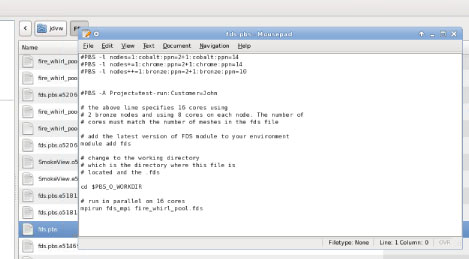
To create a text file, navigate to a folder and right click, select “Create Empty Document”
Screen-Based Editors
Sabalcore has most of the standard screen-based text editors that are normally
available with Linux and Unix based operating systems. The most popular editors are: vi, emacs, joe, and nano.
mc
Another very useful command to learn to use is “mc”. This is the Midnight Commander. It is a screen-based directory browser. It’s fairly intuitive to use and makes navigating through your home directory very quick and easy. Tip: starting mc with the -ba options turns off the fancy colors and graphical lines for better viewing on an SSH terminal. mc is very powerful and has a lot of nice features. See the man page for mc for more information.
Sometimes, it is useful to have more than one login window. With the MindTerm client, you can use “Ctrl-Shift-o” to open a clone window for this purpose. This allows you to have 2 login window open in the same session.
screen
Another great tool is “screen”. This command allows you to run 2 or more sessions on the same SSH connection. Just run the “screen” command to start it. Then use “C-a C-c” (that’s control-a, then control-c) to create a new session. You can then use “C-a C-n” to switch between sessions. You can even put screen in standby without closing your sessions and restart it where you left off later. Use “C-a C-d” to put screen in standby. Then you can logout out of your SSH session. Later, when you log back into Sabalcore, just run “screen -d -r” to reattach screen to your previous session. To completely end your screen session, just use “C-d” until all your sessions have exited. See the manpage for screen for more information.